ESP
THE FINALS ESP and Radar: What Every Option Does
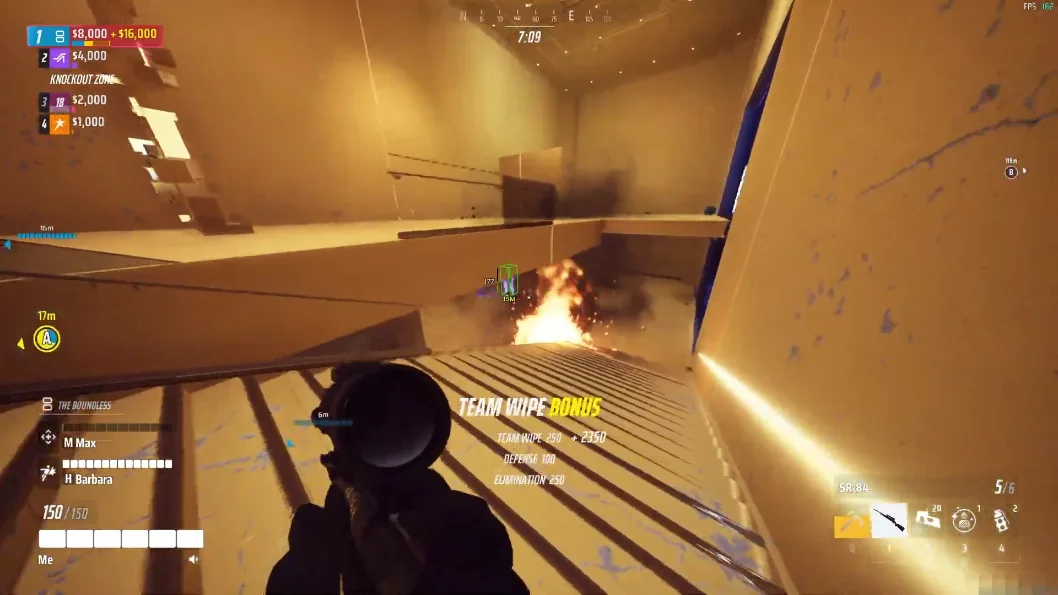
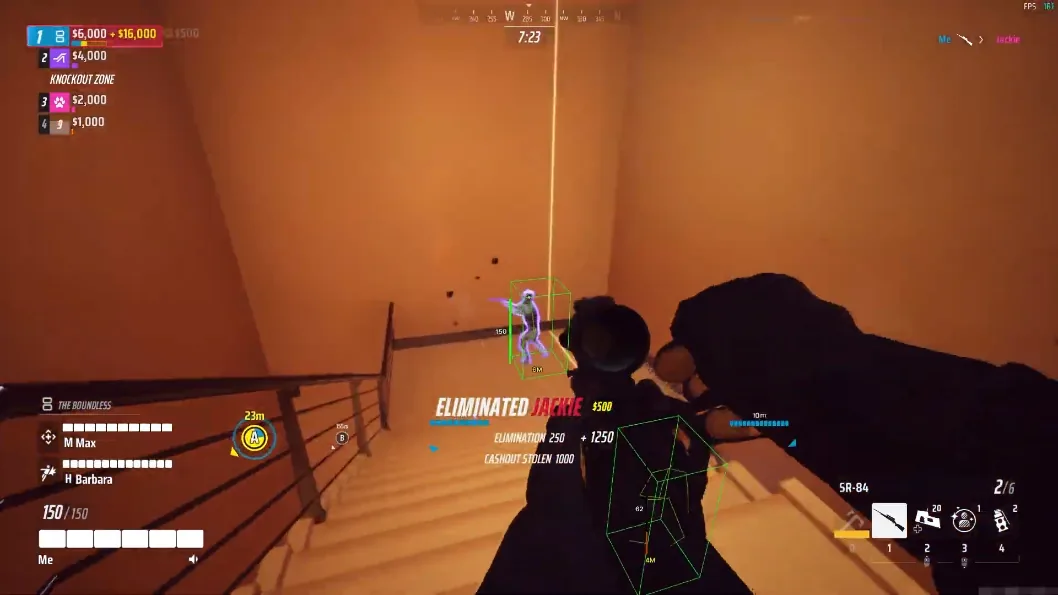
ESP is short for extra sensory perception. In practice it means information drawn on top of your game screen that you would not normally see. In a fast, chaotic game like THE FINALS, where teams fight around moving objectives and destructible buildings, knowing where everyone is can change how you play. Here is a straightforward look at the ESP and radar options on our ESP page and in the menu preview on the product page.
Player ESP and Bot ESP
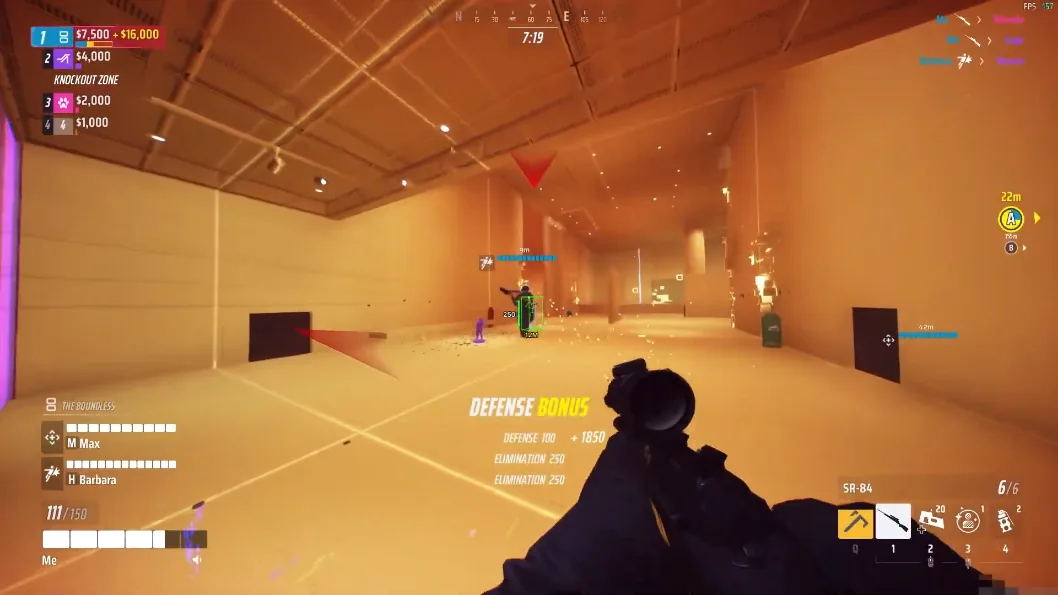
These are the main toggles on the ESP feature page. Player ESP marks enemy players, and Bot ESP marks AI-controlled targets. Having them as separate options is useful because you can decide whether you want to track only real opponents or everything on the map.
There is also a Teammate option, so you can show your own squad if you want to keep track of them.
Box, skeleton and snapline
These control how targets are drawn:
- Box puts a rectangle around the target. It is the cleanest and easiest to read.
- Skeleton draws the target's body structure, which helps you read their pose and direction.
- Snapline draws a line from your screen to the target, which is handy for pointing you toward someone off screen.
You do not need all three. Many players pick one style and keep the screen readable. Name each toggle on the features page, then tune aim separately with the aimbot settings guide.
Health, name, distance and view line
These add extra detail to each target:
- Health shows how hurt someone is, which helps you decide whether to push or fall back.
- Name shows who you are looking at.
- Distance tells you how far away they are, which matters for choosing a weapon or an approach.
- View line shows where an enemy is facing, so you can tell if they have noticed you.
Those readouts are overlay-only. They are not a substitute for reading patch notes on the status page or asking in the forum when something looks off.
The radar
The radar is a separate overlay for situational awareness. The options are:
- Enable to turn it on
- Show AI, Show Player and Show Team to filter what appears
- Zoom to change how much of the map the radar covers
- Transparency to keep it from blocking your view
A radar is especially useful for tracking movement across a wider area than your screen shows. See the dedicated radar page for how it fits next to ESP.
Other options in the menu
The menu preview on the product page also shows extra visual toggles such as glow, armor and a team check with an adjustable max distance. Menu contents can change between updates, so confirm the live list on features and status after a patch.
Setting up ESP so it stays readable
A cluttered screen is worse than no information at all. A few practical habits:
- Start with box, health and distance only.
- Add skeleton or snaplines once you are comfortable.
- Lower the max distance so far away targets do not fill the screen.
- Keep radar transparency high enough that you can still see the game.
When the screen still feels busy, read the ban risk guide for how obvious play invites reports, then follow setup for loader steps.
Is it worth it?
If you want to see what the full set of options looks like, the THE FINALS ESP and radar product page lists everything, including the video showcase. Before you buy, make sure your PC meets the requirements in our requirements and setup guide.
Gallery
In-game look